

Scratchpad
Quick calc / graph without saving a document — clear between exam questions.
Sign-ups coming soon — invited accounts can sign in · question bank practice stays open
Calculator · Cambridge IGCSE 0607
A visual tour of the non-CAS CX II for Cambridge IGCSE Mathematics 0607 (and useful for IB AA/AI too). Prefer the non-CAS model for external exams — CAS is often banned. Screenshots from TI-Nspire CX Student Software 6.3.0.
Some links may earn International Maths Project a small commission at no extra cost to you. See our affiliate disclosure.
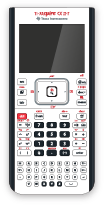
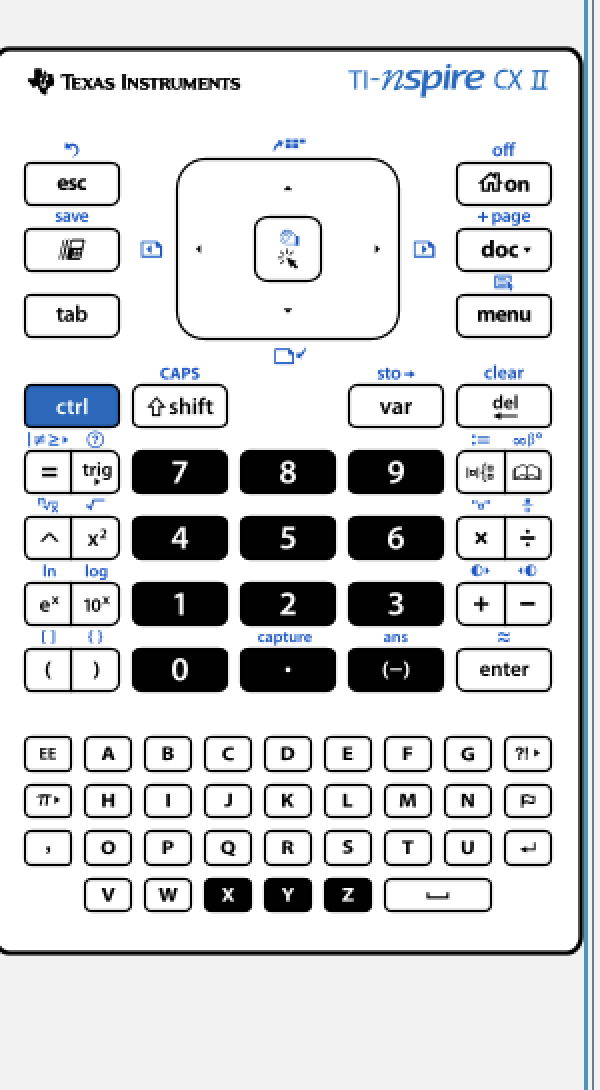
The CX II colour screen and full keypad are what you will use in class. Below: device photo, full skin, and keypad close-up (non-CAS CX II / CX II-T family).
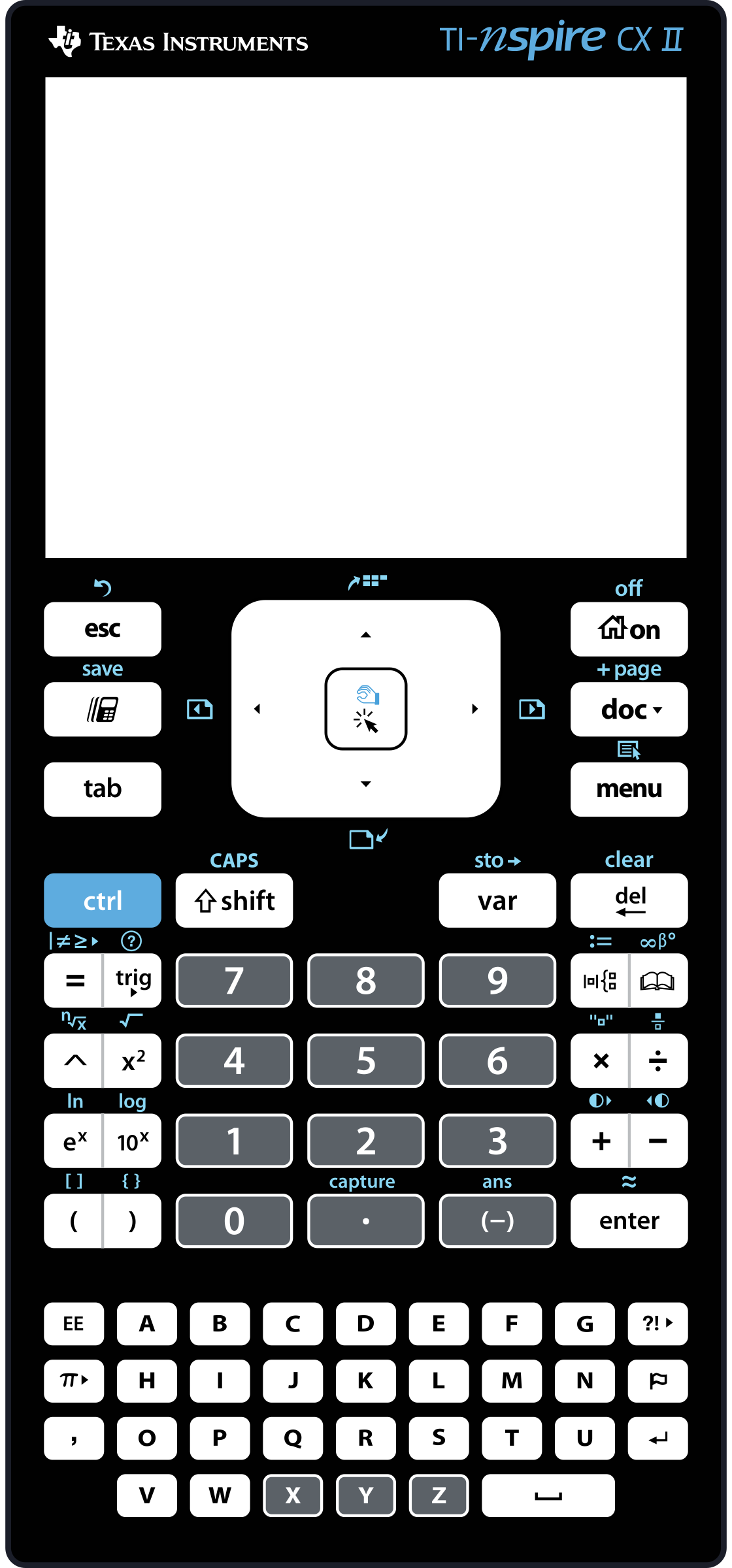
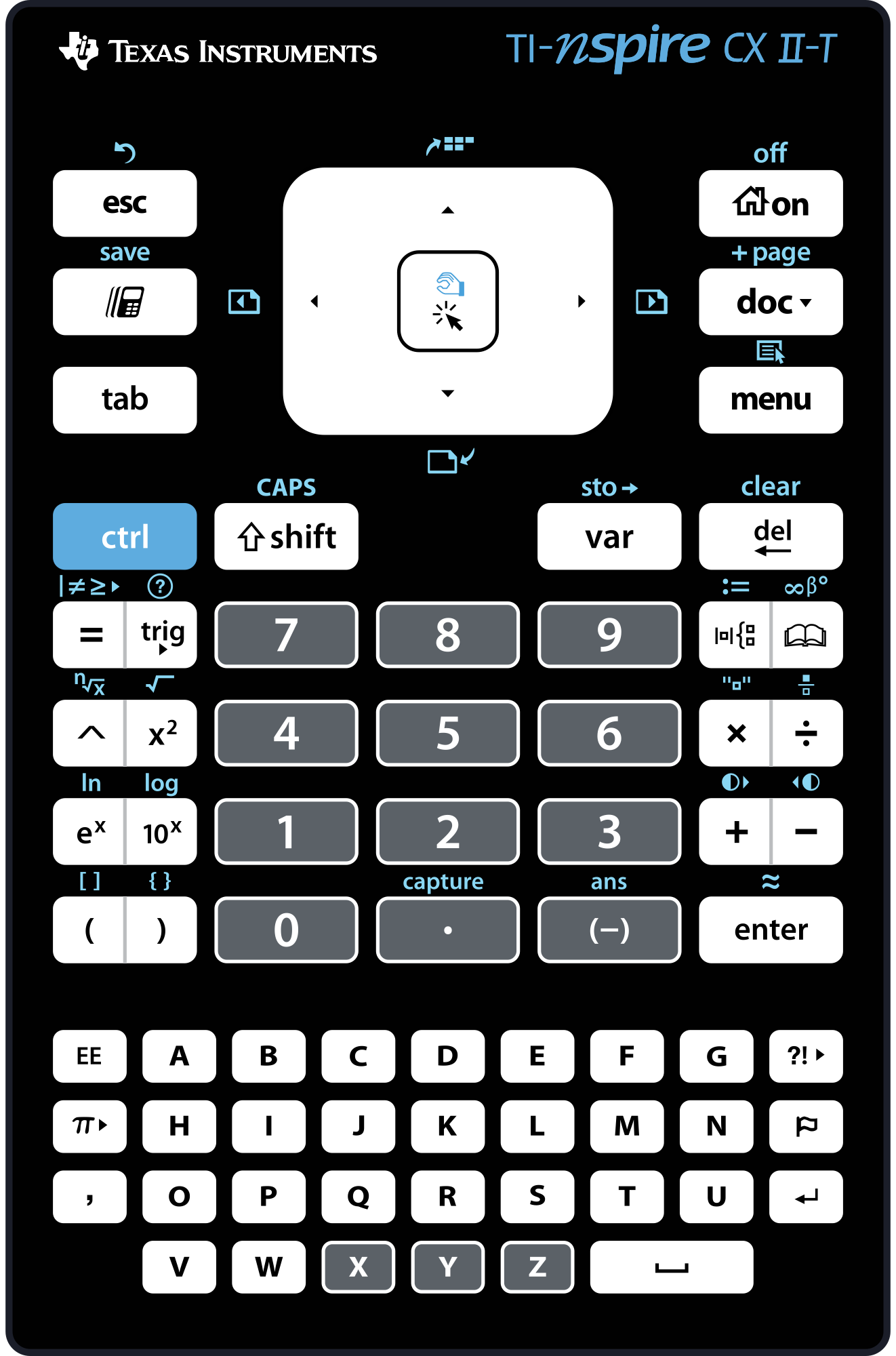

Buttons you will use constantly
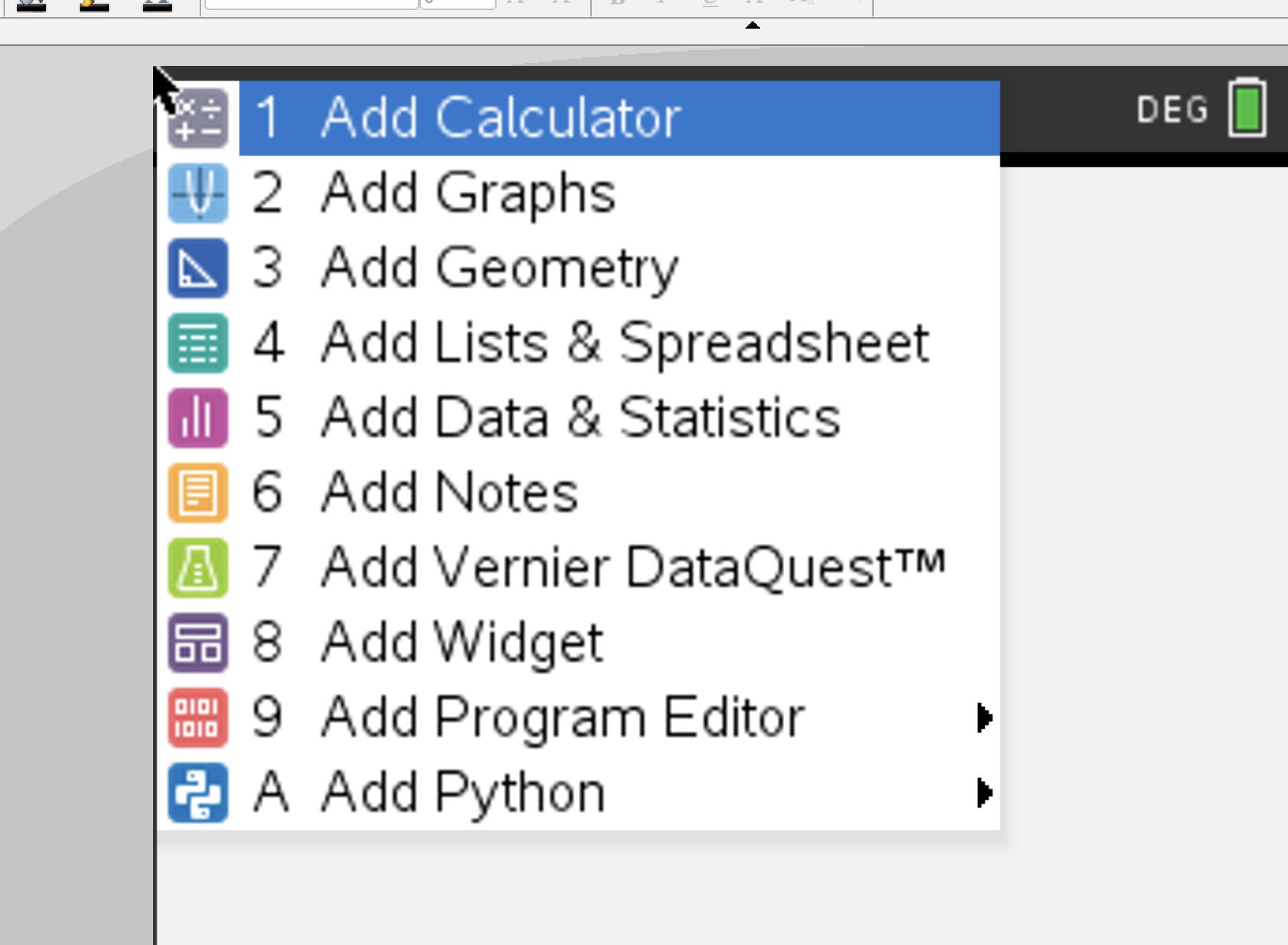
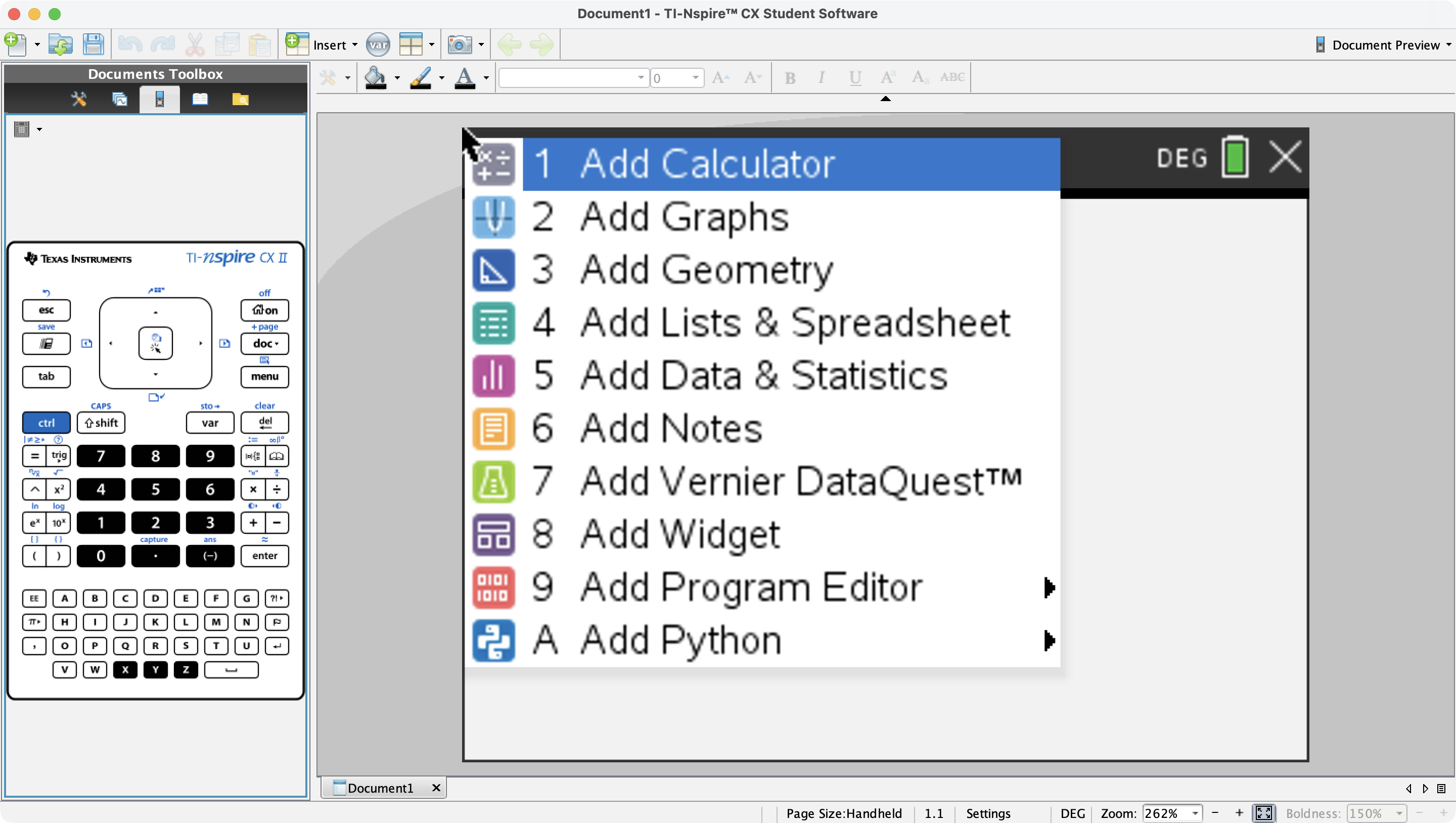
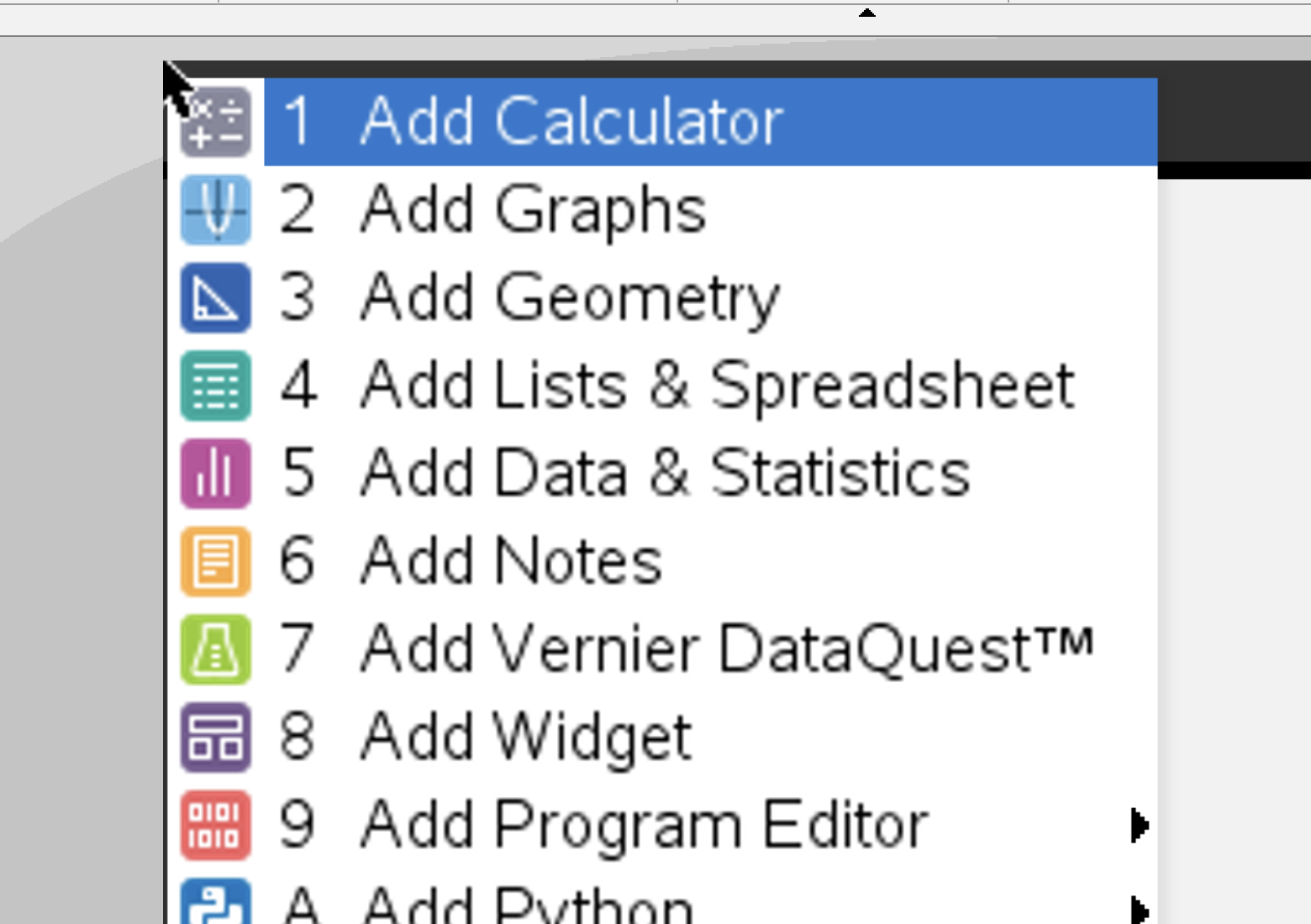
From Home you open Scratchpad or add an app page to a document. For 0607, live in Calculator (via Scratchpad or a Calculator page), Graphs, Lists & Spreadsheet, and Data & Statistics.
Quick calc / graph without saving a document — clear between exam questions.

Plot y = f(x), find roots, intersections, min/max — core 0607 GDC paper skill.

Constructions, measurements, transformations — great for investigation; use carefully in timed papers.

Enter raw data in columns, then feed stats / scatter plots.

Histograms, box plots, scatter, regression — cross-check mean / median / SD by hand.

Typed notes and maths boxes inside a document — not a substitute for paper working.
Prefer templates over typing long syntax. Open Catalog ( ) or the Math templates palette for fractions, roots, and equations — everyday 0607 entry.

Fraction
Exact a/b entry

√
Square root

ⁿ√
Nth root

Exponent
aᵇ

Equation
Solve / systems

|x|
Absolute value

Log
log / ln

Matrix
Matrices

Σ
Summation

Algebra
Catalog algebra

Statistics
Stats wizards

Math templates
Full palette


Plot the function, fix the window, then analyse. These Graph-menu icons are the ones that win marks on 0607 GDC questions.

Window
Set x/y range so features show

Zoom in
Tighten on a root / intersection

Zoom out
See the whole shape

Graph trace
Walk along the curve

Axes
Show / hide axes

Axes settings
Scale and labels

Grid
Estimate coordinates

Scatter plot
Plot list pairs

Slider
Explore parameters

Integral
Area under curve (where allowed)
f1(x)=… → Window / Zoom until you see the feature → Trace or Analyse for zero / intersection → write the coordinate on paper with working.Constructions and measurements for exploration and investigations. In a timed paper, prefer Graphs / Calculator unless the question is explicitly geometric.

Point

Midpoint

Intersection

Line

Segment

Perpendicular

Parallel

Circle

Triangle

Angle

Length

Area

Slope

Reflection

Rotation

Translation

Name columns clearly (e.g. length, mass), then open Data & Statistics or Catalog → Statistics for regression and summaries.
Many schools use licensed TI-Nspire CX Student Software 6.3.0 on Mac/PC — same menus as the handheld, easier to project. Images below are from that classroom software.
Buy the non-CAS TI-Nspire CX II, check your centre's list, and practise Press-to-Test before the real paper. This guide is for classroom orientation — always follow current Cambridge / IB calculator rules.
Some links may earn International Maths Project a small commission at no extra cost to you. See our affiliate disclosure.
Screenshots and icons from TI-Nspire CX Student Software 6.3.0 (classroom licensed use). Texas Instruments and TI-Nspire are trademarks of their owners; International Maths Project is not affiliated with TI.